


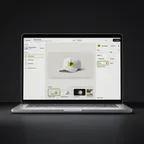



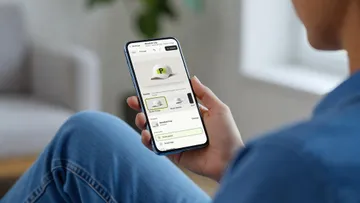
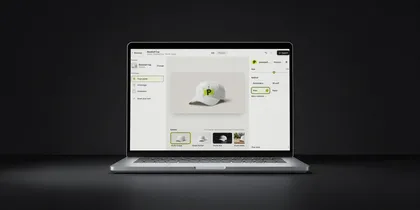
Mockups from your AI chat.
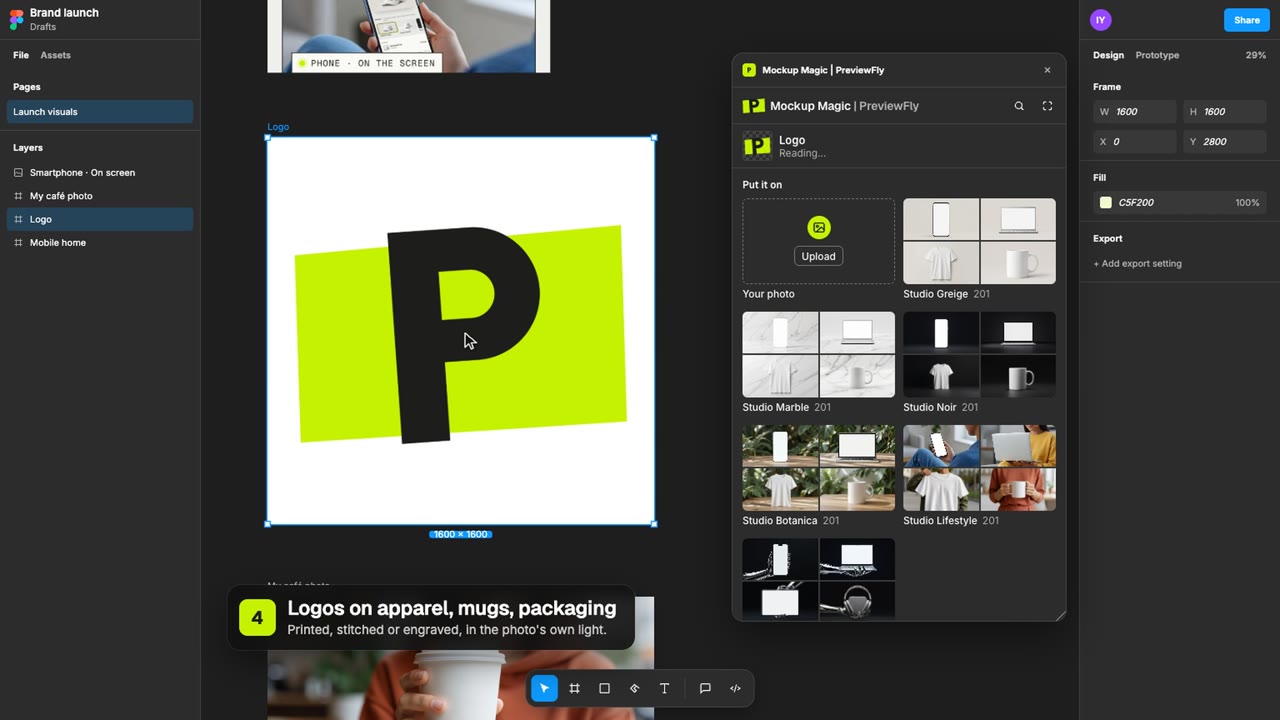
Connect PreviewFly to Claude, Codex, Cursor or any MCP client. Name a product, a technique and your logo, or share your own photo: it sets the mockup up and gives you the link.
curl -LsSf https://astral.sh/uv/install.sh | shClaude Code
- Run this once in your terminal.
- Start Claude Code and ask for a mockup; /mcp shows PreviewFly as connected.
claude mcp add --env 'PREVIEWFLY_API_KEY=<your API key>' --transport stdio --scope user previewfly -- uvx --from https://cdn.previewfly.com/mcp/previewfly_mcp-0.1.2-py3-none-any.whl previewfly-mcp
Replace <your API key> with the key from your PreviewFly account. · Claude Code MCP docs ↗
Claude Desktop
- Open the Claude menu › Settings › Developer › Edit Config.
- Add PreviewFly under mcpServers, save, and restart Claude Desktop.
{
  "mcpServers": {
    "previewfly": {
      "command": "uvx",
      "args": [
        "--from",
        "https://cdn.previewfly.com/mcp/previewfly_mcp-0.1.2-py3-none-any.whl",
        "previewfly-mcp"
      ],
      "env": {
        "PREVIEWFLY_API_KEY": "<your API key>"
      }
    }
  }
}
Replace <your API key> with the key from your PreviewFly account. · Claude Desktop MCP docs ↗
Codex
- Run this once, or add the block to your Codex config.
- Start Codex and ask for a mockup.
codex mcp add previewfly --env 'PREVIEWFLY_API_KEY=<your API key>' -- uvx --from https://cdn.previewfly.com/mcp/previewfly_mcp-0.1.2-py3-none-any.whl previewfly-mcp[mcp_servers.previewfly]
command = "uvx"
args = ["--from", "https://cdn.previewfly.com/mcp/previewfly_mcp-0.1.2-py3-none-any.whl", "previewfly-mcp"]
[mcp_servers.previewfly.env]
PREVIEWFLY_API_KEY = "<your API key>"
Replace <your API key> with the key from your PreviewFly account. · Codex MCP docs ↗
Cursor
- Add PreviewFly to your global (or project) mcp.json.
- Open Cursor Settings › MCP and check it is on.
{
  "mcpServers": {
    "previewfly": {
      "command": "uvx",
      "args": [
        "--from",
        "https://cdn.previewfly.com/mcp/previewfly_mcp-0.1.2-py3-none-any.whl",
        "previewfly-mcp"
      ],
      "env": {
        "PREVIEWFLY_API_KEY": "<your API key>"
      }
    }
  }
}
Replace <your API key> with the key from your PreviewFly account. · Cursor MCP docs ↗
VS Code
- Run this once to add PreviewFly to your profile, or add it to a workspace's mcp.json.
- Open Copilot Chat in agent mode; PreviewFly's tools appear in the tools list.
code --add-mcp '{"name":"previewfly","type":"stdio","command":"uvx","args":["--from","https://cdn.previewfly.com/mcp/previewfly_mcp-0.1.2-py3-none-any.whl","previewfly-mcp"],"env":{"PREVIEWFLY_API_KEY":"<your API key>"}}'{
"servers": {
"previewfly": {
"type": "stdio",
"command": "uvx",
"args": [
"--from",
"https://cdn.previewfly.com/mcp/previewfly_mcp-0.1.2-py3-none-any.whl",
"previewfly-mcp"
],
"env": {
"PREVIEWFLY_API_KEY": "<your API key>"
}
}
}
}
Replace <your API key> with the key from your PreviewFly account. · VS Code MCP docs ↗
Gemini CLI
- Run this once.
- Start Gemini CLI; /mcp lists PreviewFly.
gemini mcp add -s user -e 'PREVIEWFLY_API_KEY=<your API key>' previewfly uvx -- --from https://cdn.previewfly.com/mcp/previewfly_mcp-0.1.2-py3-none-any.whl previewfly-mcp{
"mcpServers": {
"previewfly": {
"command": "uvx",
"args": [
"--from",
"https://cdn.previewfly.com/mcp/previewfly_mcp-0.1.2-py3-none-any.whl",
"previewfly-mcp"
],
"env": {
"PREVIEWFLY_API_KEY": "<your API key>"
}
}
}
}
Replace <your API key> with the key from your PreviewFly account. · Gemini CLI MCP docs ↗
Other MCP clients
- Any client that runs local (stdio) MCP servers works: give it this command and environment.
- Most clients take it in this mcpServers form.
'PREVIEWFLY_API_KEY=<your API key>' uvx --from https://cdn.previewfly.com/mcp/previewfly_mcp-0.1.2-py3-none-any.whl previewfly-mcp{
"mcpServers": {
"previewfly": {
"command": "uvx",
"args": [
"--from",
"https://cdn.previewfly.com/mcp/previewfly_mcp-0.1.2-py3-none-any.whl",
"previewfly-mcp"
],
"env": {
"PREVIEWFLY_API_KEY": "<your API key>"
}
}
}
}
Replace <your API key> with the key from your PreviewFly account. · Other MCP clients MCP docs ↗
What to ask
- “Put my logo (~/Desktop/logo.svg) on a takeaway cup in offset print.”
- “Which techniques can I use on a trucker cap?”
- “Use this photo of my tote bag on the street as the scene and print our logo on the bag.”
- “Show me five drinkware products I could mock up for a café.”
What it can do
- Find products
- Search the library by name or kind, and see which techniques each product is really made with.
- Use your own photo
- Give it a photo of your product or your own background; PreviewFly finds the product in it.
- Set up the mockup
- Your logo, on the product, in the technique you pick. Techniques a material isn't made with are refused.
- Open it in PreviewFly
- You get the mockup's link: open it to see the preview, adjust it and download.
Questions
Which AI tools work with PreviewFly?
Any tool that runs local MCP servers: Claude Code, Claude Desktop, Codex, Cursor, VS Code (Copilot), Gemini CLI and others. The setup for each is on this page.
Which plan do I need?
Connecting your AI tools is part of Pro ($6.99 a month plus tax, with a 7-day free trial). Your API key is in your PreviewFly account.
Do I need to install anything?
uv, a small tool that runs PreviewFly's MCP server for you. Install it once; your AI tool starts the server on its own after that.
Does the mockup appear in the chat?
Your AI tool sets the mockup up and gives you its link. Open it in PreviewFly to see the preview, adjust it and download it.
What can it read on my computer?
Only the logo or photo files you name in the conversation. It sends them to PreviewFly to make the mockup, nothing else.