


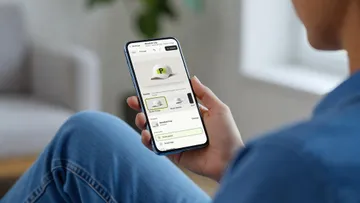
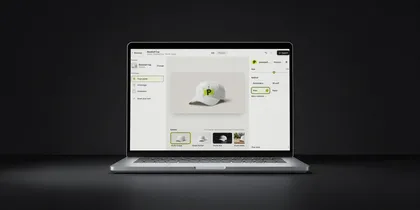
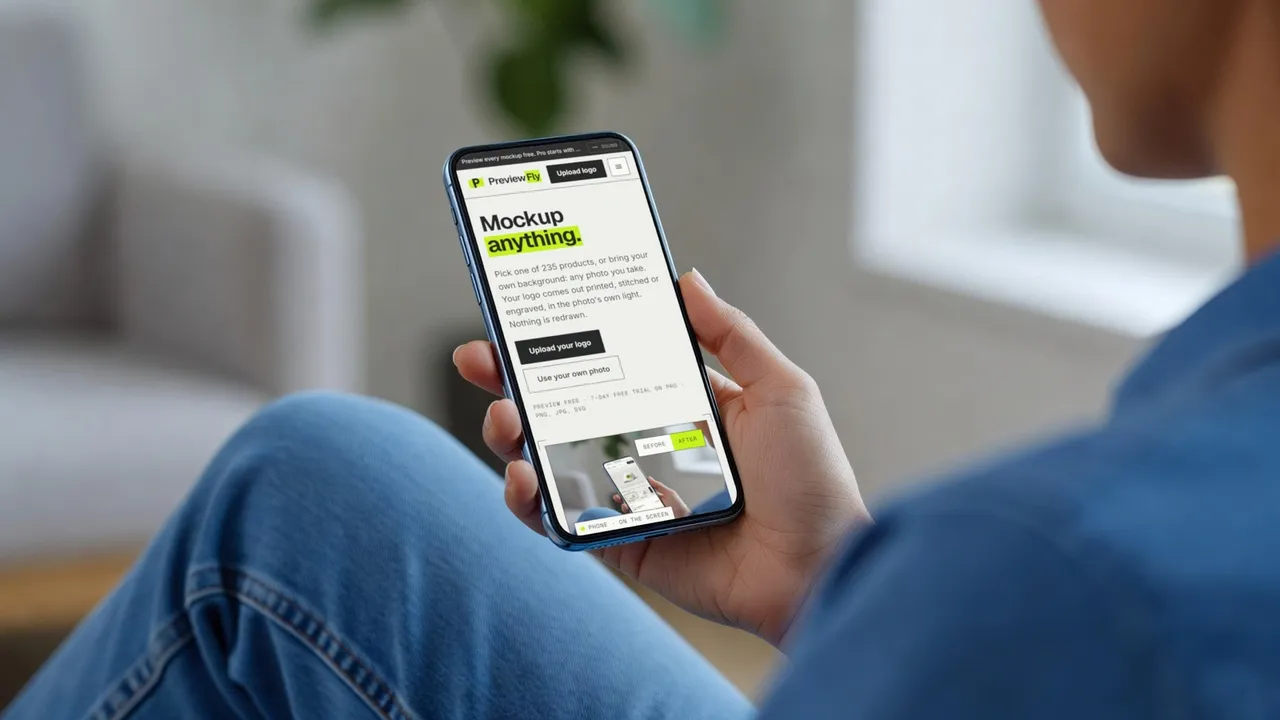
Mockups, right in Figma.
Select a layer, pick a product, and the finished mockup lands on your canvas. Phones, laptops and tablets first, then apparel, mugs, packaging and print: 407 products in six studio looks, or a photo of your own.
28.6k users on the Figma Community · free to previewTry it right here.
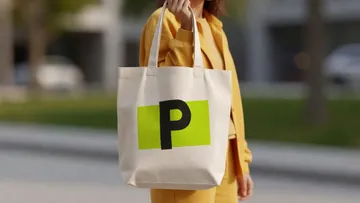
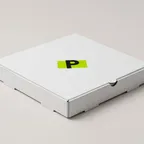
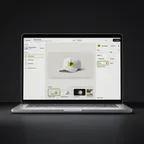
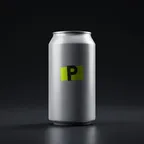
A small Figma file with the plugin open. Pick a layer, a product and a look, then change the logo's colour and update the mockup. Every image is a real mockup the plugin made from these layers.
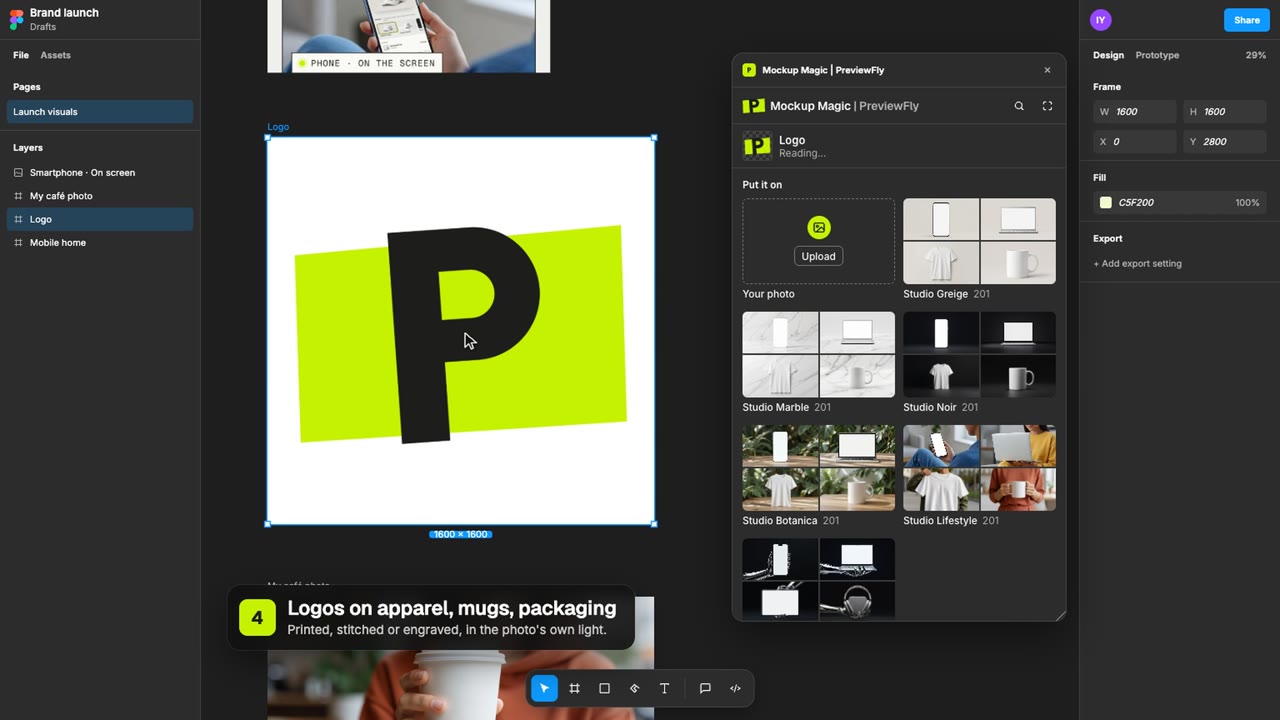
In Figma, your own layers go on them · same products, same looks
Three clicks, then it keeps up.
- 1 Select a layer Any visible layer: a frame, a component, a group, text or an image. Whatever you want on the product.
- 2 Pick a look and a product Six studio looks and 407 products, devices first. Search them or browse a look.
- 3 Place it Your design is already on the product, in the photo's own light. The finished mockup lands on your canvas.
Changed the design later? Select its mockups and click Update from design. They are made again from the layer, in place.
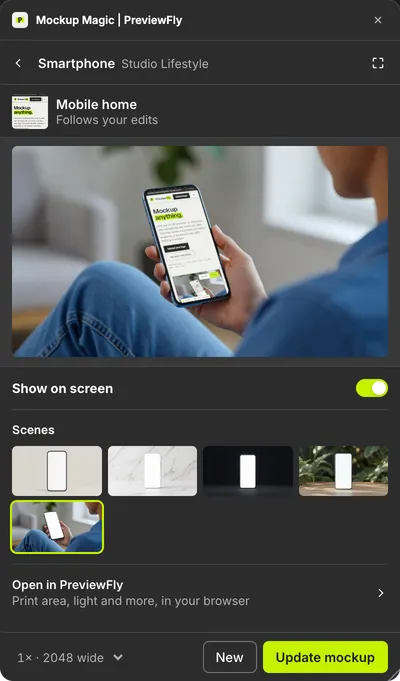
Web and mobile first. Then everything else.
App screens and websites go on phones, laptops, tablets, monitors and watches. Logos go on apparel, drinkware, packaging and print: printed, stitched or engraved, the way each one is really made.
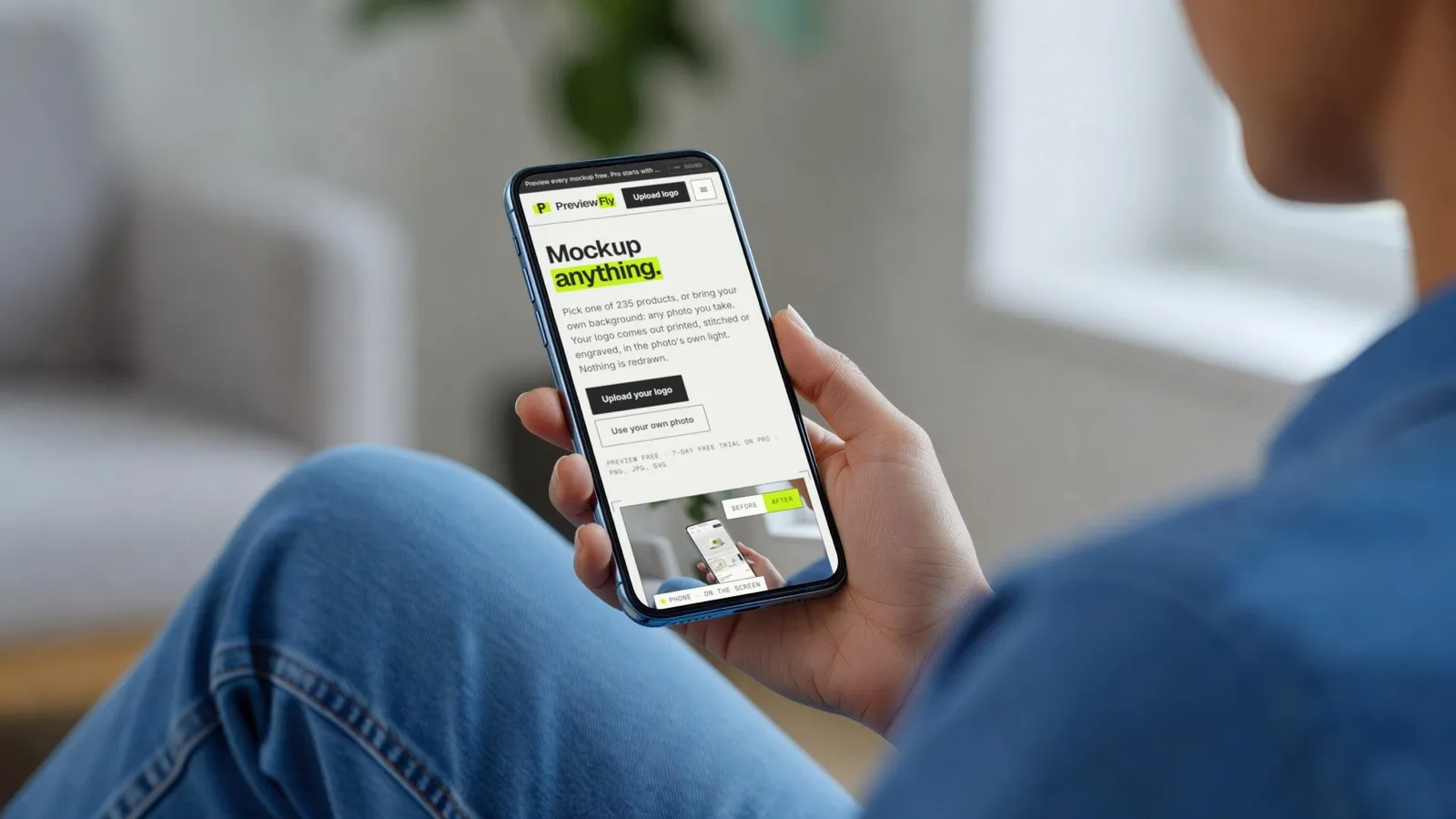
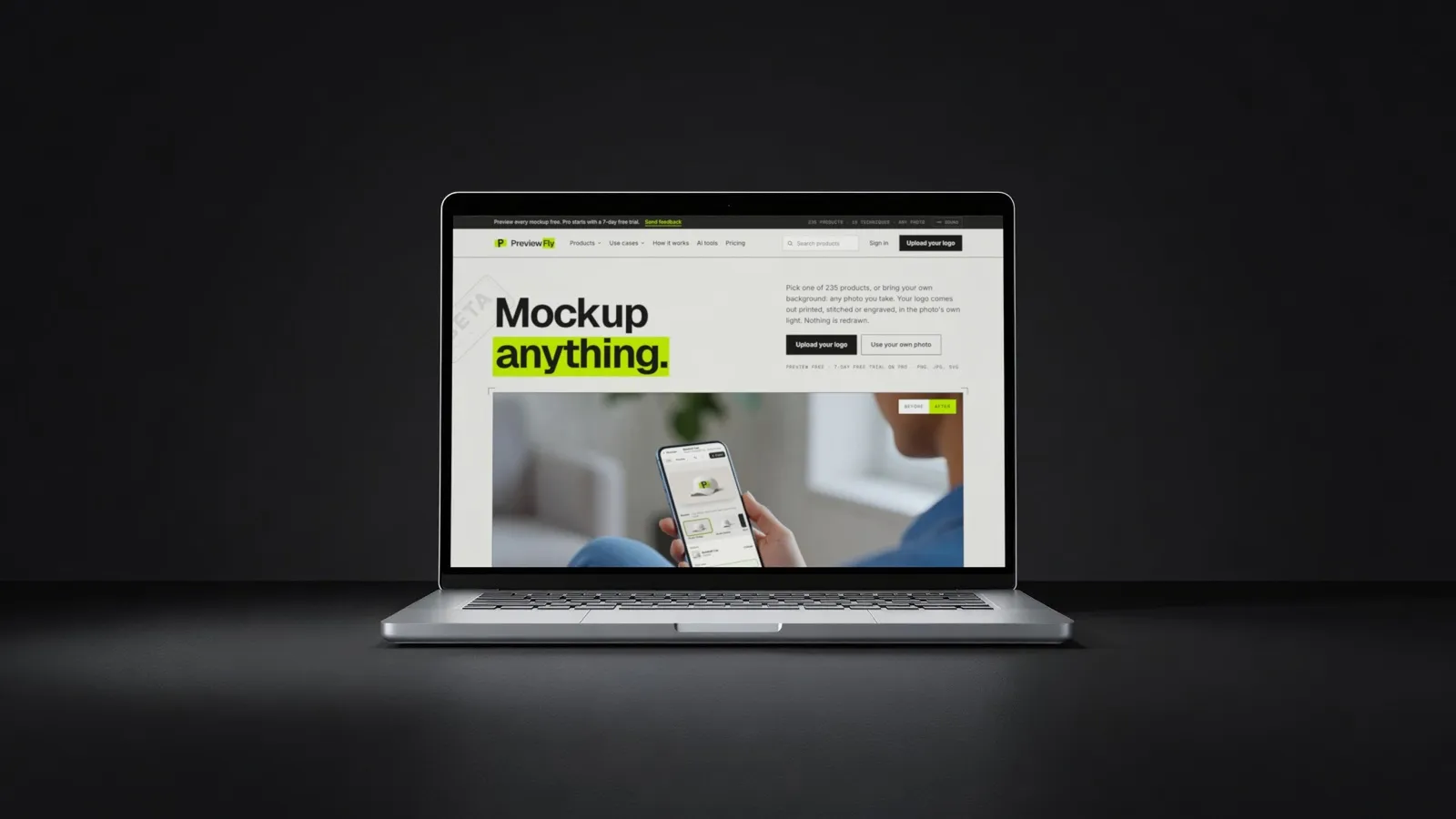
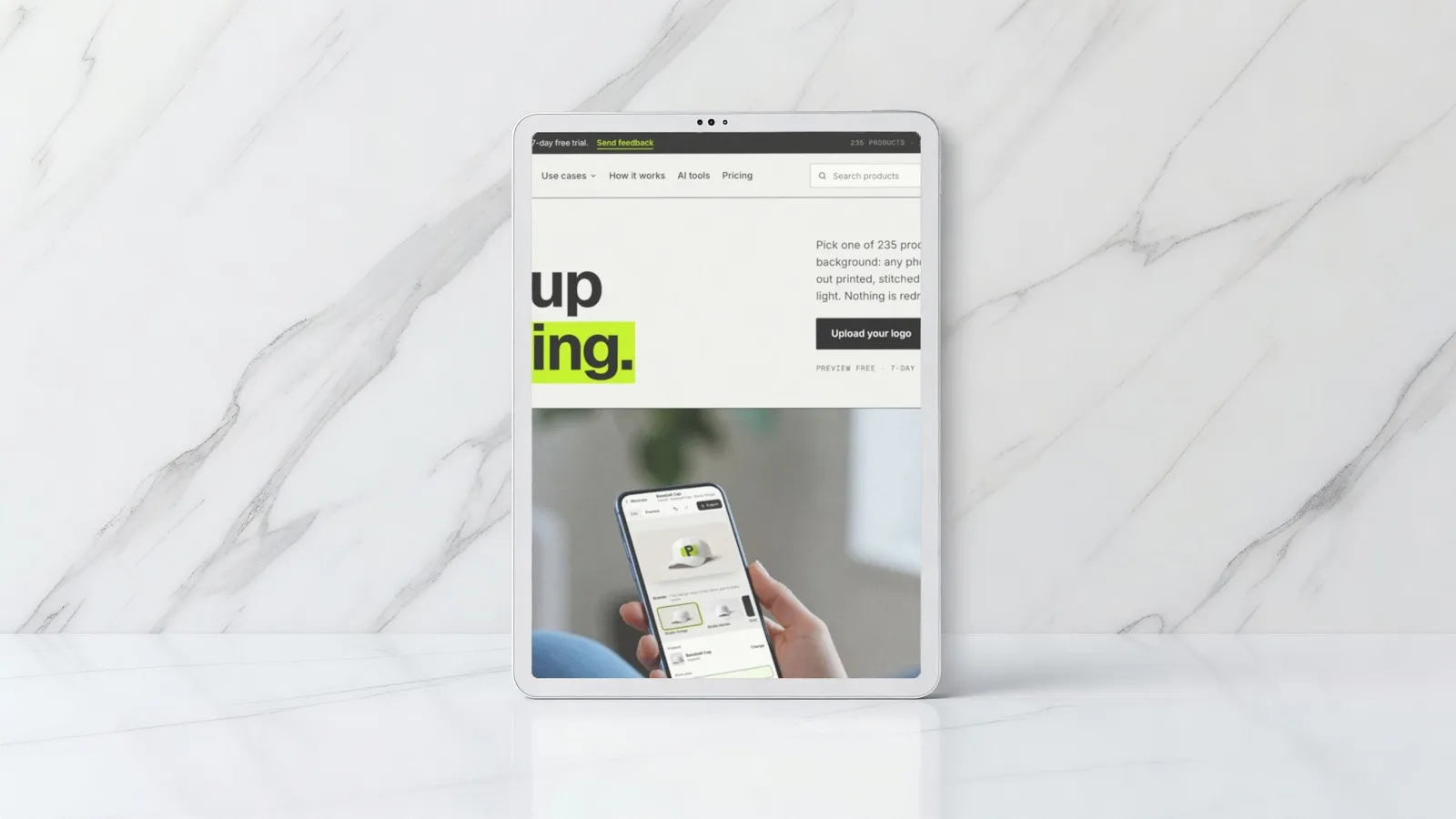
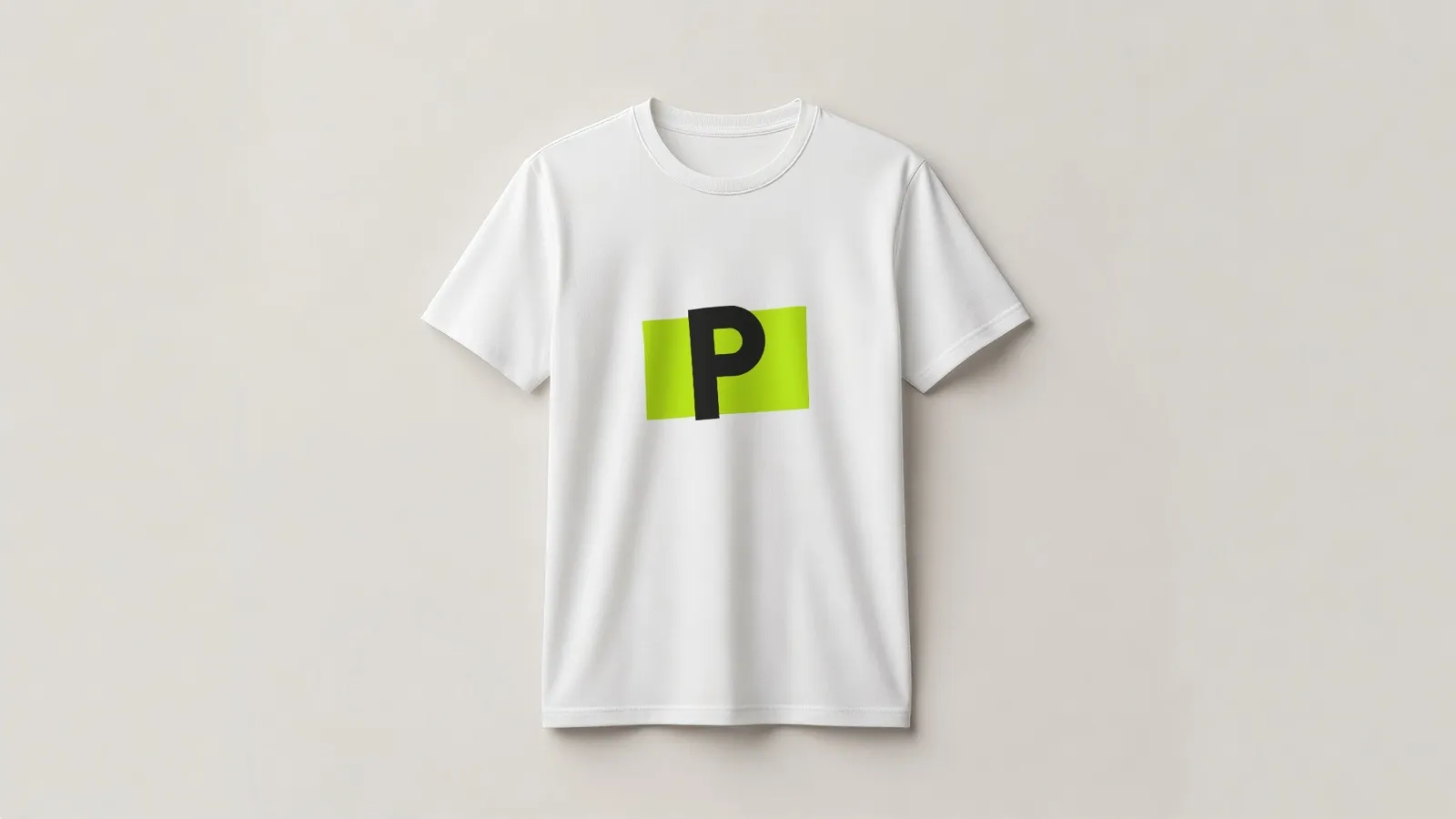
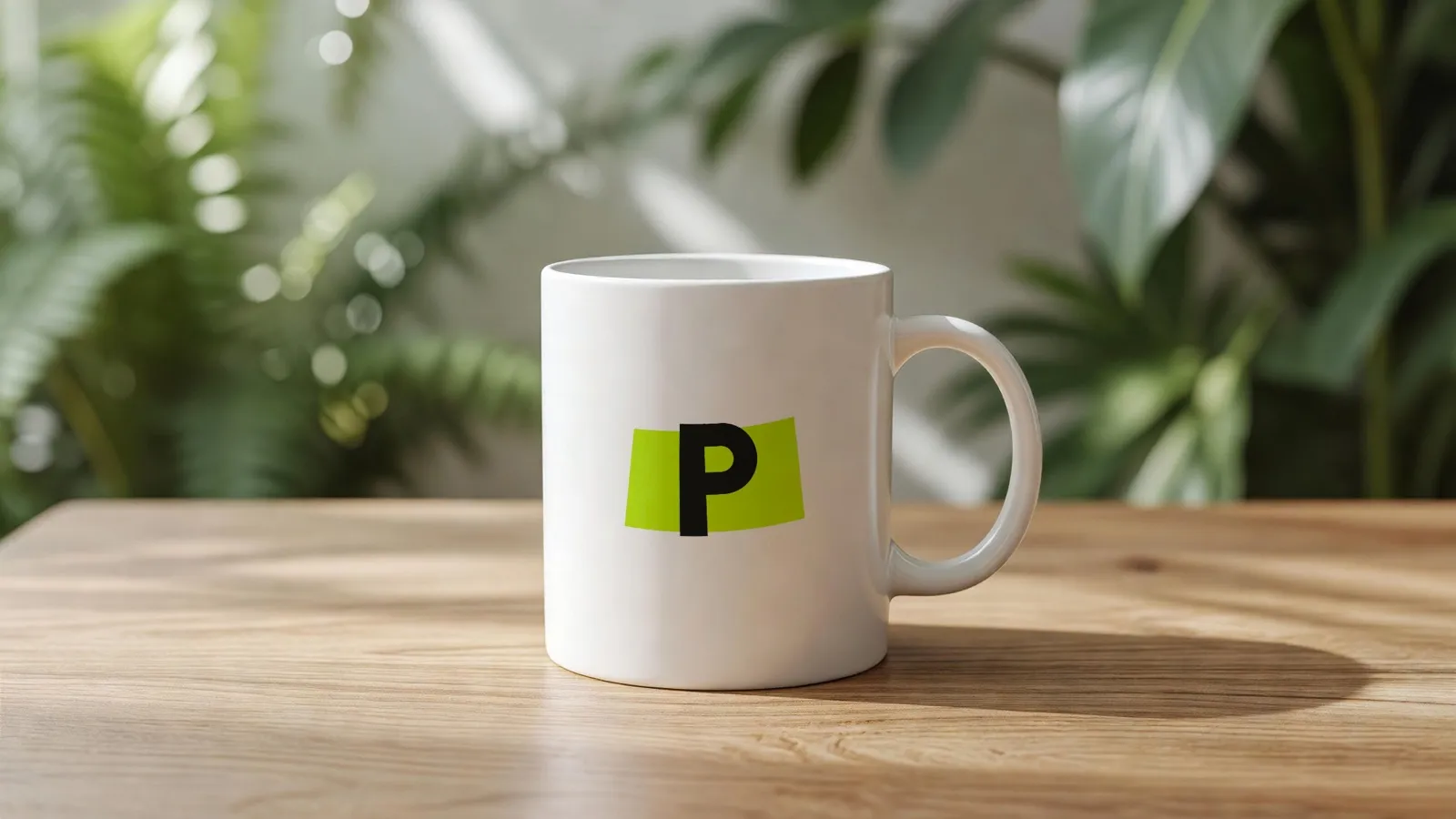
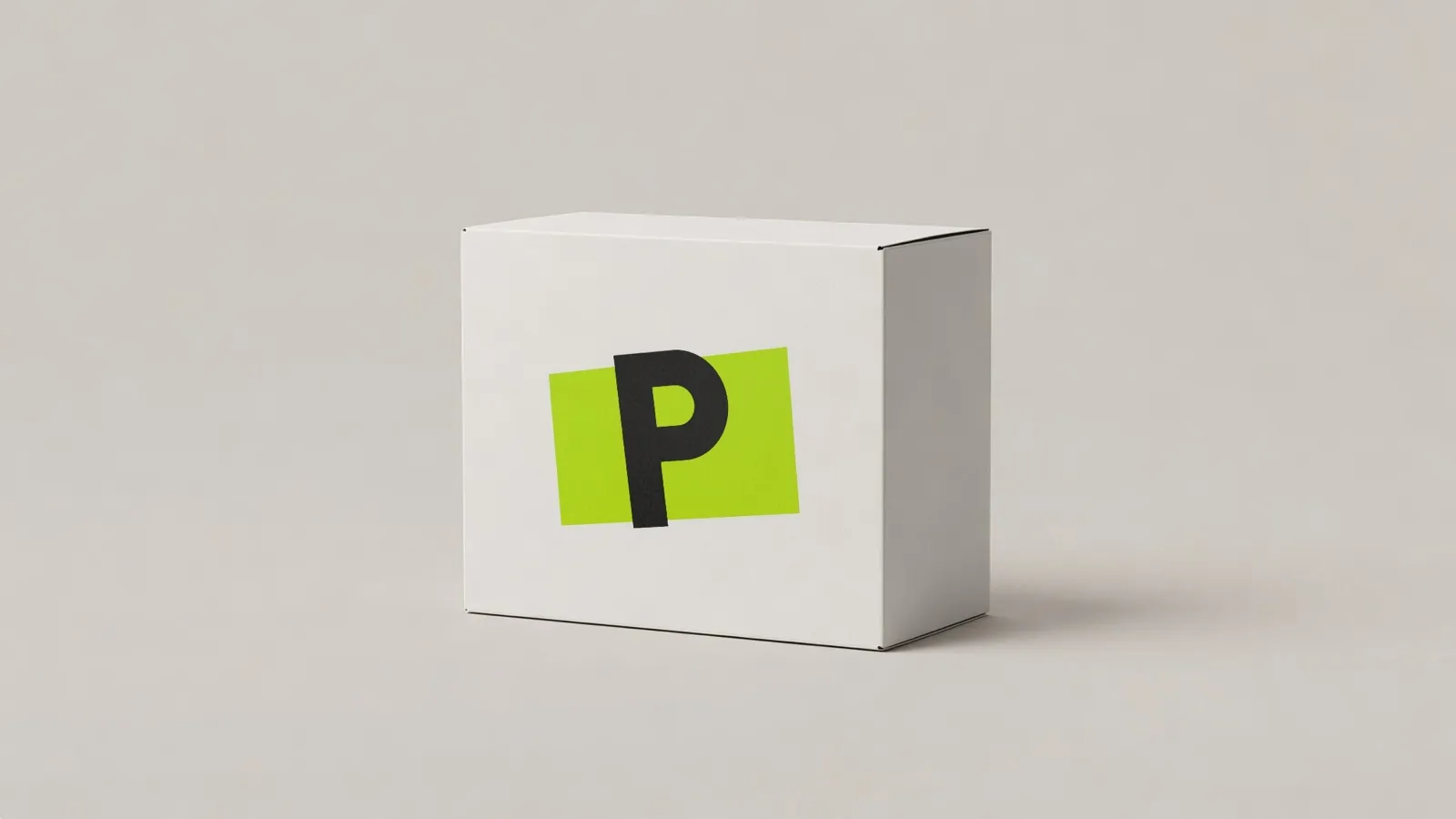
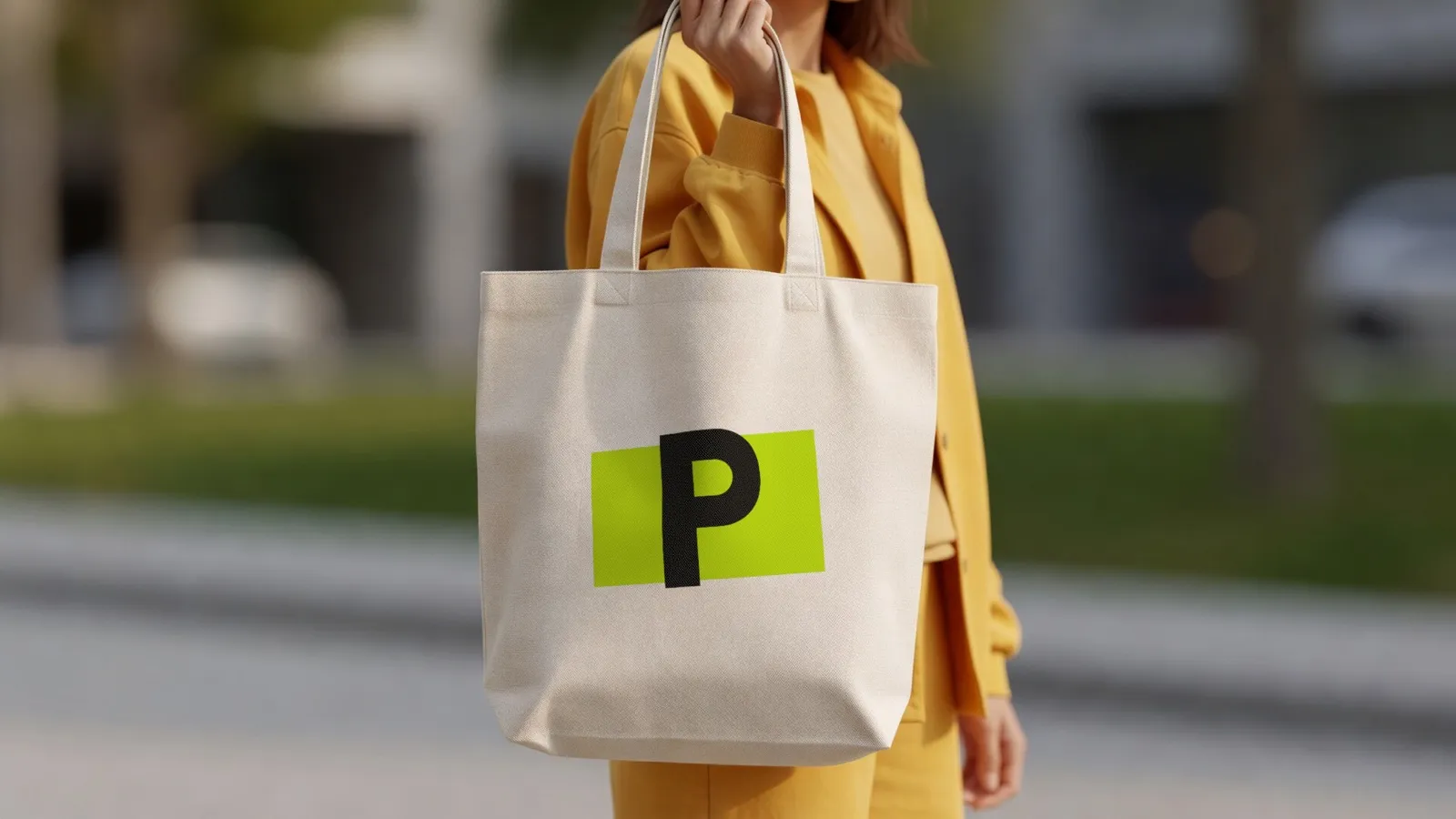
The same 407 products as the web app, in the same six studio looks.
See all 407 productsMade for how you work in Figma.
Preview free. Place with Pro.
Every product and every look is free to preview in the plugin, without an account, and your first mockup on the canvas is free with one. Placing more needs PreviewFly Pro: $6.99 a month or $76.89 a year plus tax, with a 7-day free trial. The same Pro works in the browser and in your AI tools.
Questions about the plugin
Is Mockup Magic free?
Previews are free, without an account. Your first mockup on the canvas is free with a PreviewFly account; placing more needs Pro: $6.99 a month or $76.89 a year plus tax, with a 7-day free trial.
Is this the same Mockup Magic?
Yes, the same plugin on the Figma Community, now made by PreviewFly. The web and mobile mockups come first, and apparel, mugs, packaging and print are new, in six studio looks or a photo of your own.
Which layers can I use?
Any visible layer you can export: frames, components, groups, text and images. Sections and slices are the only ones it skips.
Do my mockups update when I change the design?
Yes. Select the mockups and click “Update from design”: each one is made again from its layer, in place on your canvas.
Can I use a photo of my own product?
Yes. Upload a photo, or select an image in your file and use it as the scene. PreviewFly finds the product in it and puts your design on it.
What leaves my Figma file?
Only the layer you use, and your photo if you pick one: they are sent to PreviewFly to make the mockup. Nothing else in your file is sent.
How do I sign in?
In your browser, with Google or email. The plugin opens PreviewFly's sign-in page and picks up your account when you are done.